 Car Cinema

CarPlay split screen: your iPhone’s screen beside a film, live TV or YouTube
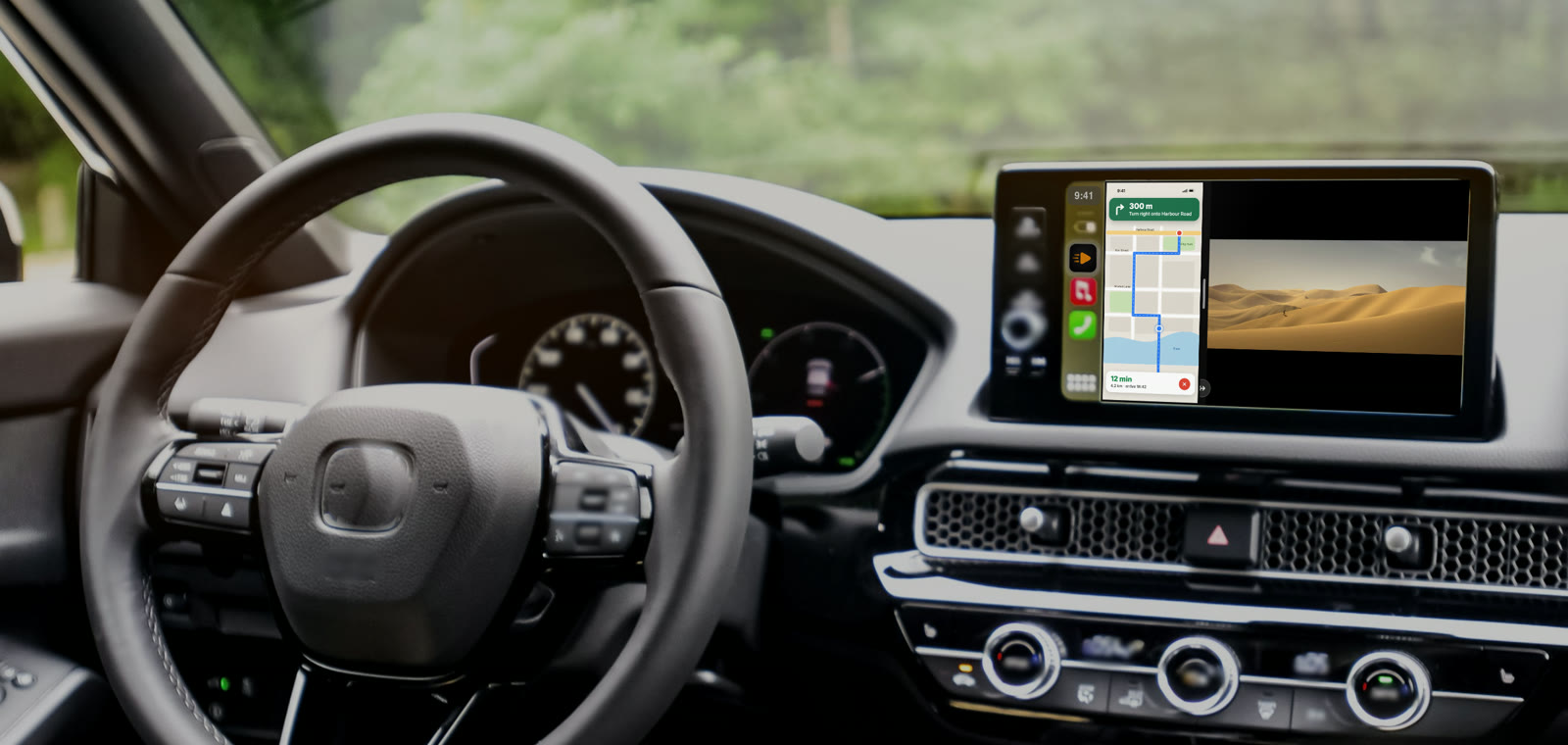
Yes, CarPlay can show your iPhone’s screen and a video side by side: with the Car Cinema app, a map, your messages or any app on the iPhone fills one half of the car’s display, and a live channel, a film or YouTube plays in the other. CarPlay’s own split view puts maps next to music; video beside your iPhone’s screen comes from Car Cinema, in every car with CarPlay, on iOS 26.4 and later.
Checked 15 November 2026. Car Cinema 1.0.6, tested in Apple’s CarPlay Simulator and on an iPhone with CarPlay.
How to split the CarPlay screen, step by step
- Open Car Cinema on the car’s screen. Connect CarPlay, with a cable or wireless, and tap I am parked when Car Cinema asks.
- Play something. A live channel from your playlist, a film, or a YouTube page in Car Cinema’s browser on the car’s screen.
- Share the iPhone’s screen. On the iPhone, open Car Cinema, tap iPhone screen and then Start Broadcast. Then open the app you want beside the video — a map, your messages, anything.
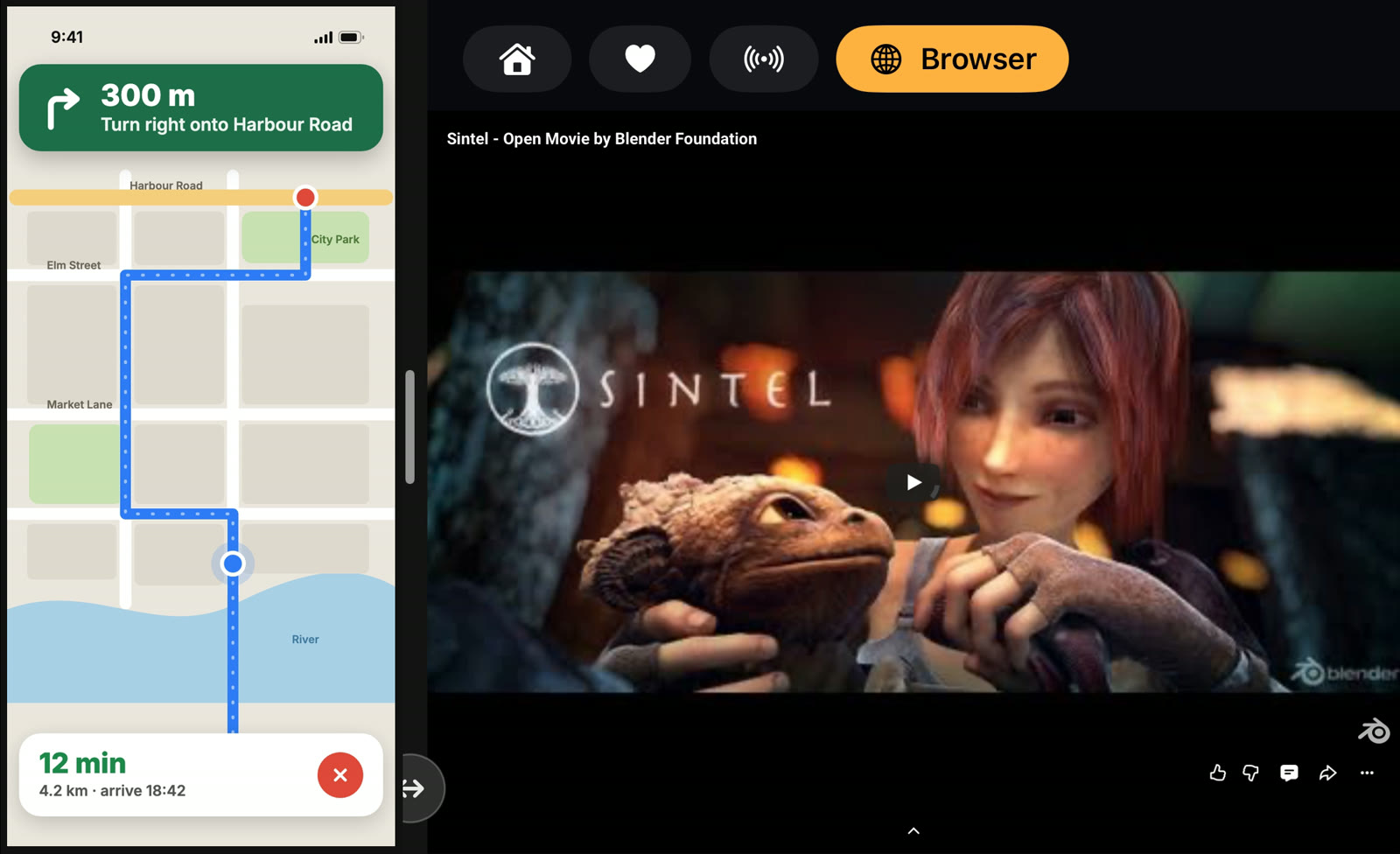
- Tap Split screen on the car’s screen. The display splits: the iPhone on one side, your video on the other. To have it split by itself every time, turn on Split screen: iPhone + video in Car Cinema’s Settings → iPhone screen in the car.
What can be on each side
| The iPhone’s side | The video’s side | |
|---|---|---|
| What shows | Whatever is on your iPhone’s screen: a map, messages, music, any app | Car Cinema’s player or its browser on the car’s screen |
| Examples | Your route, a chat, the next song | Live TV from your IPTV playlist, a film from Jellyfin or Emby, your own videos, YouTube |
| Touch | A tap on the iPhone’s picture shows Stop | The player’s buttons and the browser, as usual |
| Sound | Through the car’s speakers | |
The iPhone’s screen in the car
Car Cinema shows the iPhone’s screen on the CarPlay display with no adapter: tap iPhone screen on the iPhone and start the broadcast. Without Split screen, the iPhone’s screen fills the car’s display; with it, it shares the display with your video. Apps with copy protection, such as some paid streaming services, keep their picture on the iPhone — iOS doesn’t send it to another screen.
Left or right, wider or narrower
Put the iPhone on the left, next to CarPlay’s dock, or on the right, closer to a passenger: Settings → iPhone screen in the car. On the car’s screen, on iOS 26.4 to 27.1, drag the line between the two sides or tap the round button at its foot: a quarter, a half, as wide as it goes; on iOS 27.2 and later the ↔ button makes the iPhone’s side a step wider. On the iPhone, Narrower, Wider and Auto do the same while the screen is shared. Turning Split screen off gives the whole display back to one of them.
Which iPhones and iOS
iOS 26.4 or later, iOS 27.2 included, in every car with CarPlay — wired or wireless, any screen shape. On iOS 18 to 26.3 the car’s screen shows Car Cinema’s lists and the sound plays through the car; the split needs the picture on the car’s display, so it starts at iOS 26.4.
Parked, not driving
The video half follows the same rule as all video in Car Cinema: it starts after you tap I am parked, and video on the car’s display is for a parked car and for passengers. Driving? Keep video off — the sound, your lists and the steering wheel buttons still work. See can you watch videos on CarPlay while driving.
Questions
Is split screen part of CarPlay?
CarPlay’s own split view shows CarPlay apps such as maps and music side by side. Video beside the iPhone’s screen is a Car Cinema feature.
Do I need an adapter or a jailbreak?
No. Car Cinema is an App Store app; nothing to plug in or change in the car. See adapter or app.
Why is the iPhone’s side black?
The app on the iPhone has copy protection, or the broadcast stopped. Open another app on the iPhone, or tap iPhone screen again.
Is it free?
Every iPhone gets 30 minutes of playback free. Car Cinema Pro then keeps it playing — monthly, yearly or a one-time purchase.