 Car Cinema
How to use Car Cinema in your car: the complete guide
Car Cinema plays your IPTV channels, films, YouTube and your Jellyfin or Emby library on the CarPlay screen. Add your sources on the iPhone, connect CarPlay, open Car Cinema on the car’s screen and tap I am parked — the film plays on the car’s display. On the road you keep the sound, and the steering wheel switches channels.
What you need
- An iPhone with iOS 18 or later — iOS 26.4 or later for the picture on the car’s display, iOS 27.2 included
- A car or a stereo with Apple CarPlay, with a cable or wireless
- Car Cinema from the App Store — the first 30 minutes are free
- Something to watch: an IPTV playlist, a Jellyfin or Emby server, your files or YouTube
1. Add your channels and films
Car Cinema is a player: it comes with no channels and plays what you add. Open Library and tap +:
- Link — your provider’s M3U or M3U8 playlist link, or scan its QR code
- Xtream — the server, user name and password your provider gave you: live channels, films and series
- Server — your Jellyfin or Emby library at home
- File or Text — a playlist file from Files, or the playlist pasted as text
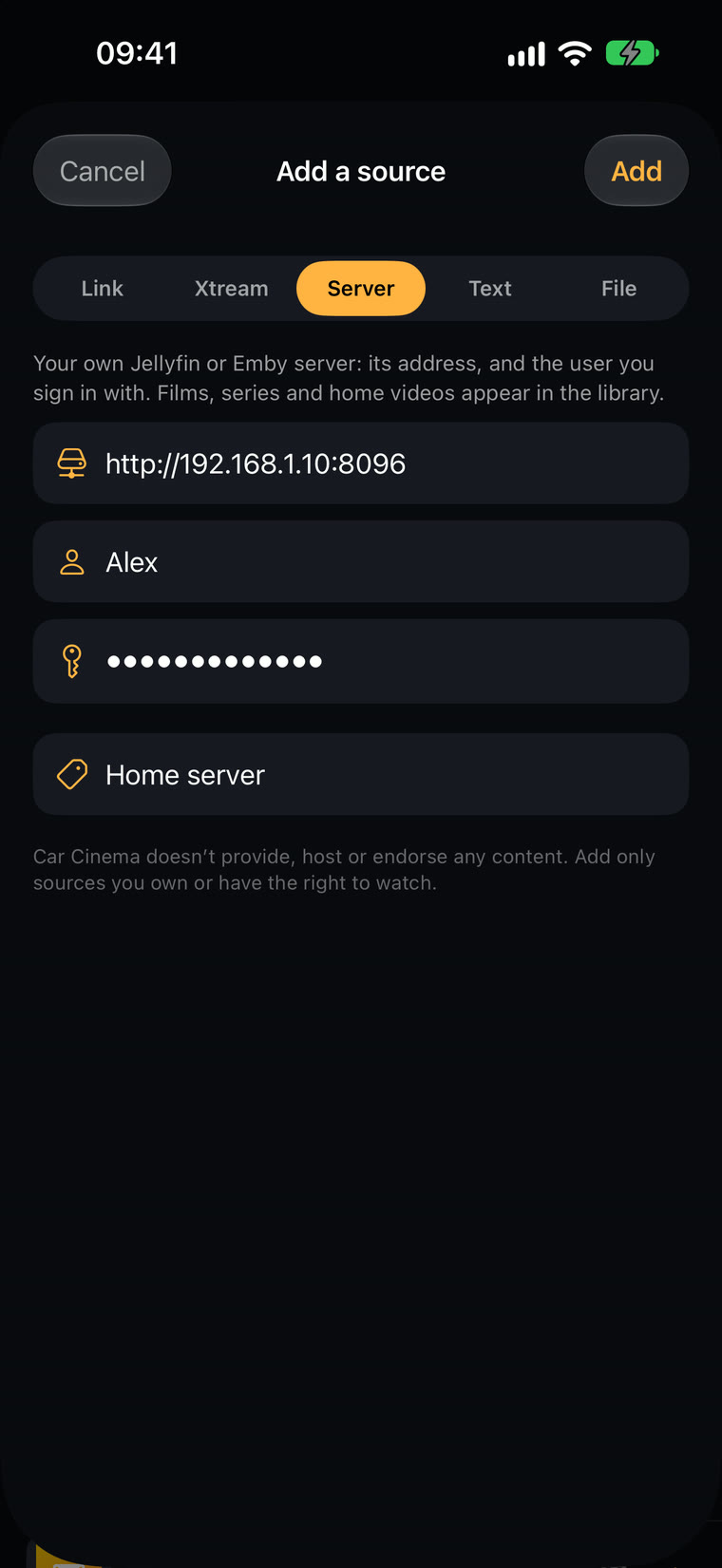
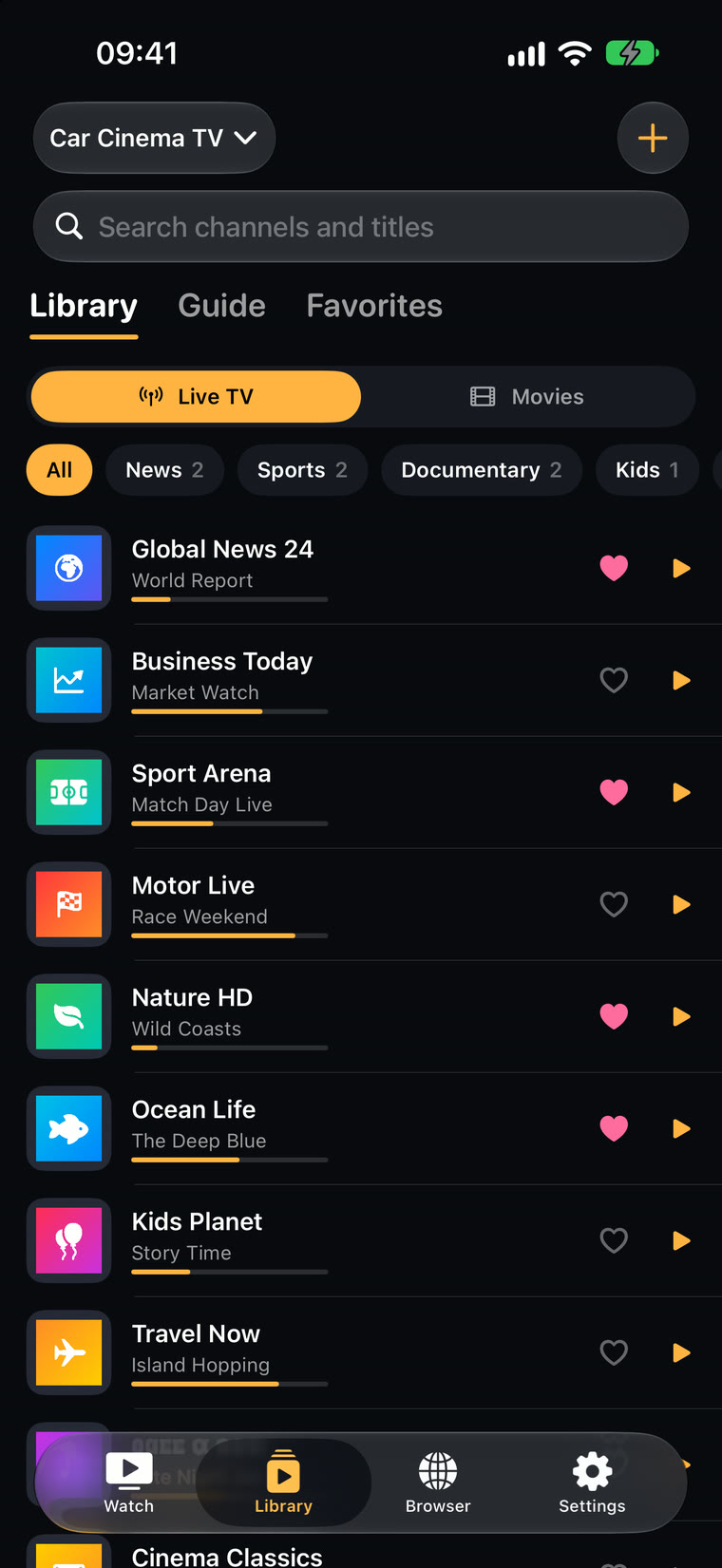
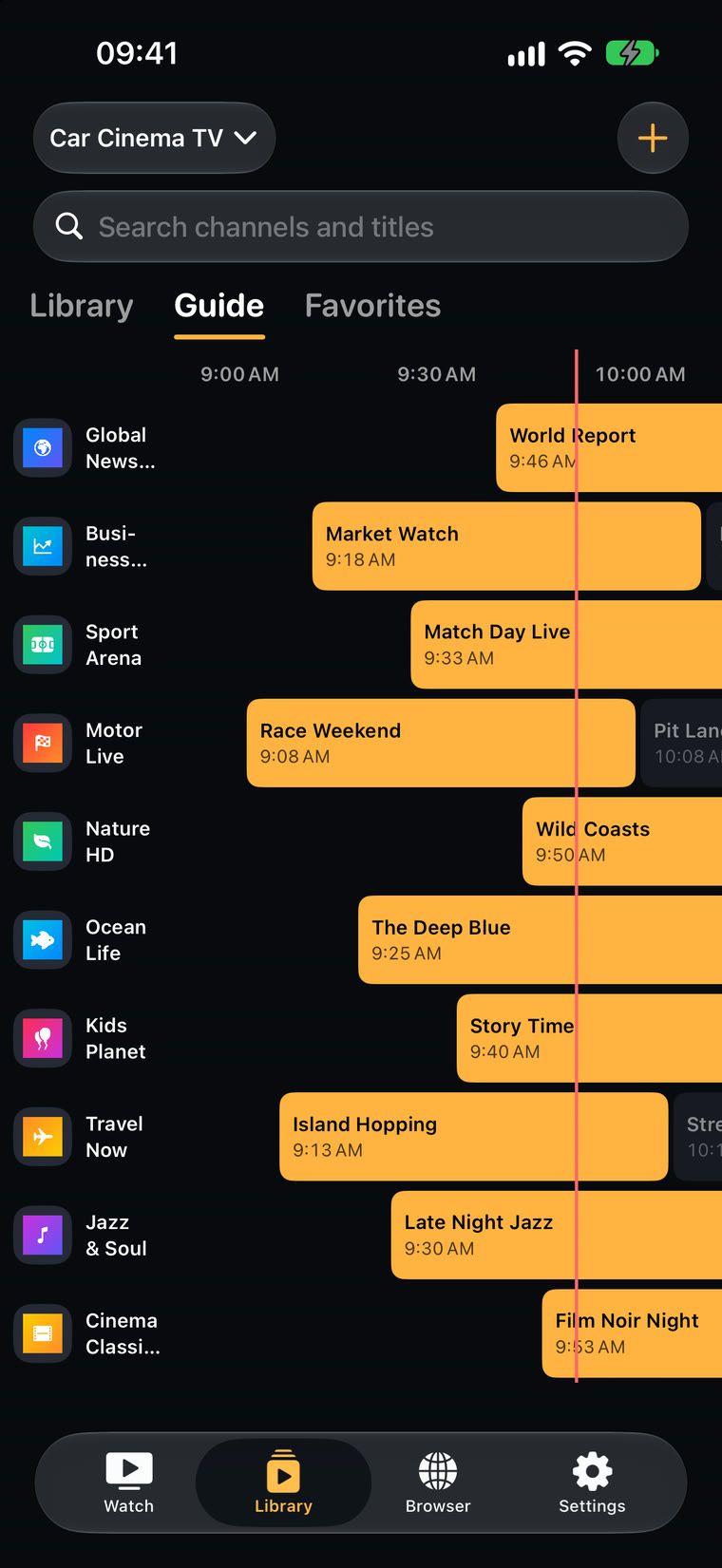
Your channels come in groups, with the TV guide where your playlist or account provides one. Add the ones you watch most to Favorites: they get their own tab on the car’s screen. New to playlists? Read where to get a legal IPTV playlist.
2. Connect CarPlay
Plug in the cable or let wireless CarPlay connect, then tap Car Cinema on the car’s screen. On the iPhone the Watch tab shows CarPlay connected, and anything you start there plays in the car.
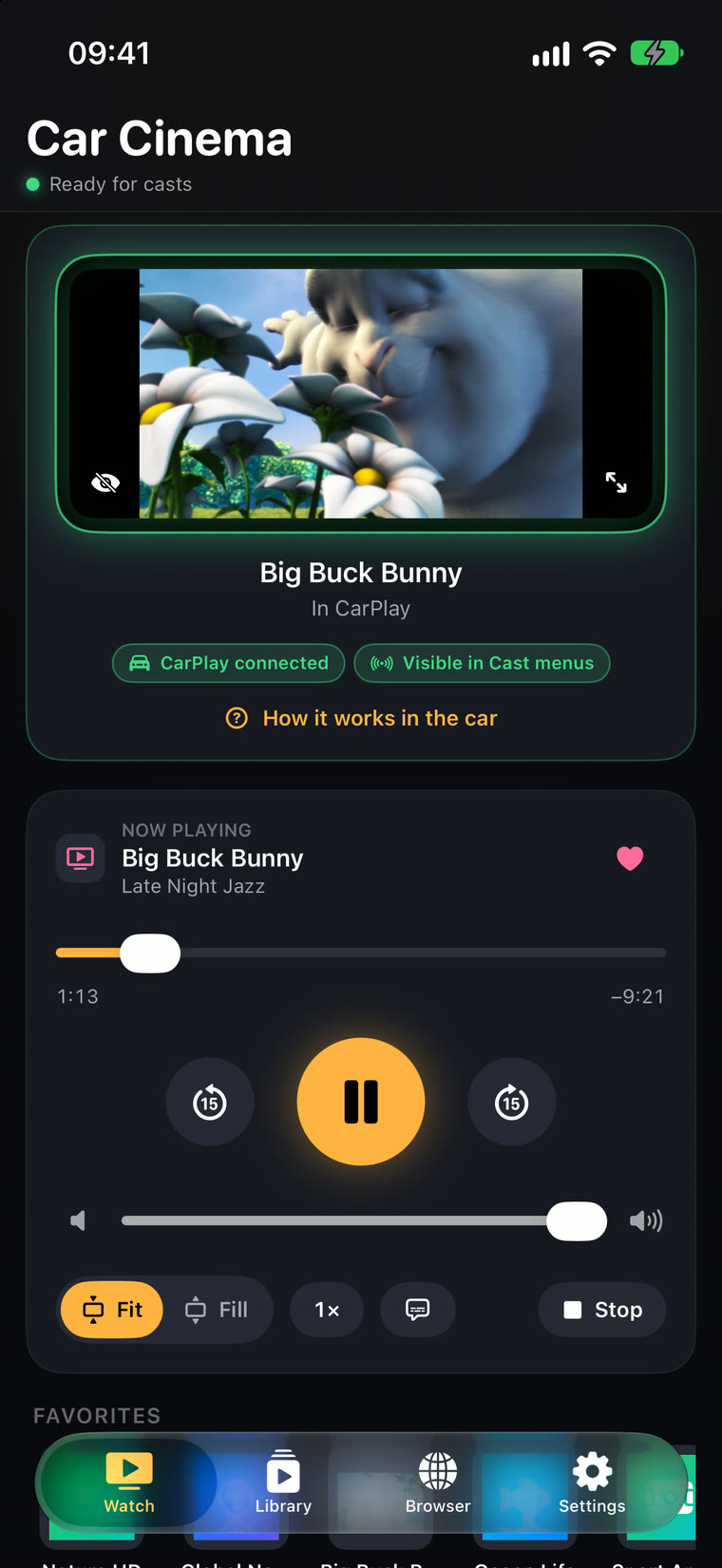
Not sure what the car’s screen can show? Settings → How it works in the car draws your car’s screen, the steering wheel and the remote — the same picture as in the next step.
Car Cinema shows this guide by itself the first time CarPlay connects.
3. The car’s screen at a glance
On iOS 27.2 Car Cinema’s car screen looks like this:
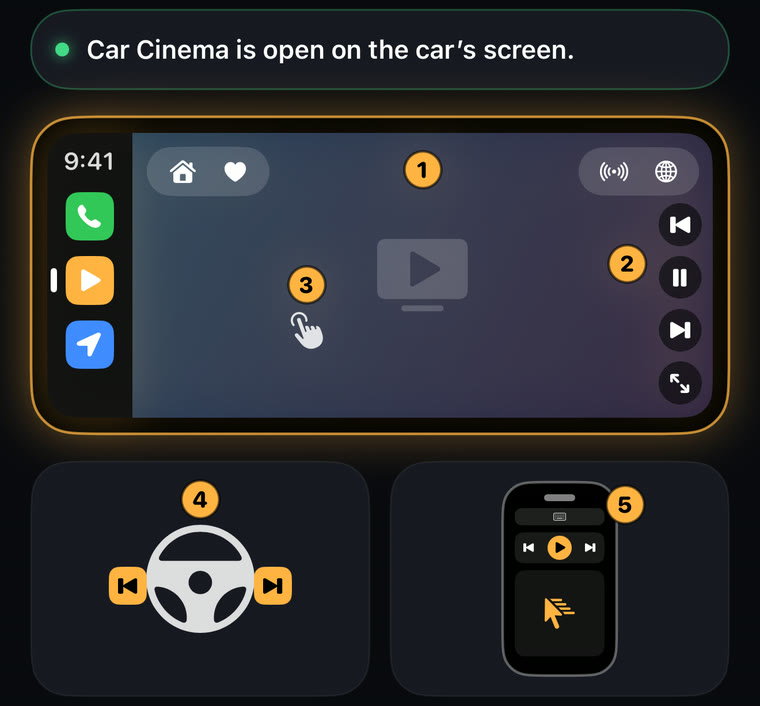
- 1 The bar: channels, Favorites, YouTube and casts
- 2 Previous · play · next · picture fit
- 3 Tap the picture for the buttons; swipe for the next channel
- 4 Steering wheel: previous and next channel
- 5 iPhone remote: pointer, scroll and typing
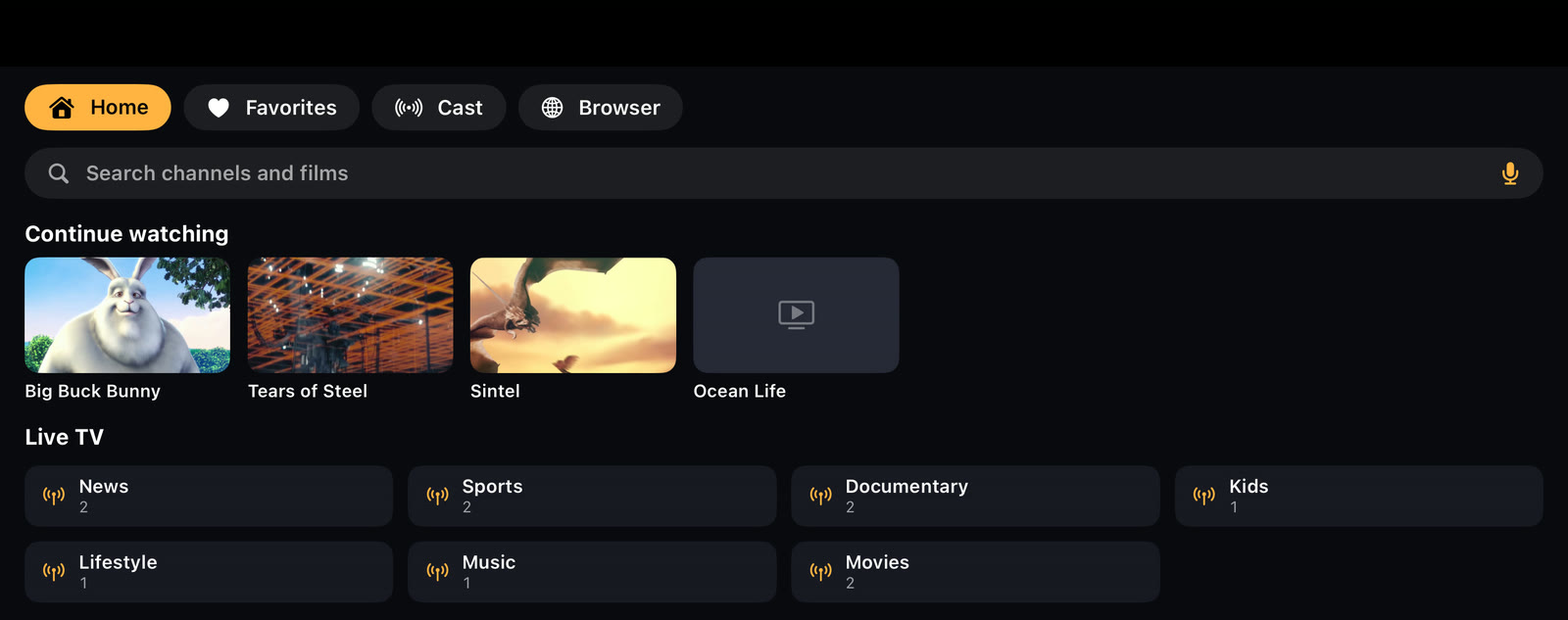
On iOS 26.4 to 27.1 Car Cinema has its own car screen with tabs — Home, Favorites, Cast and Browser:
4. Park and press play
Pick a channel or a film on the car’s screen or on the iPhone. Car Cinema asks once per drive whether you’re parked: tap I am parked and the picture fills the car’s display. Fit shows the whole picture, Fill covers the screen.
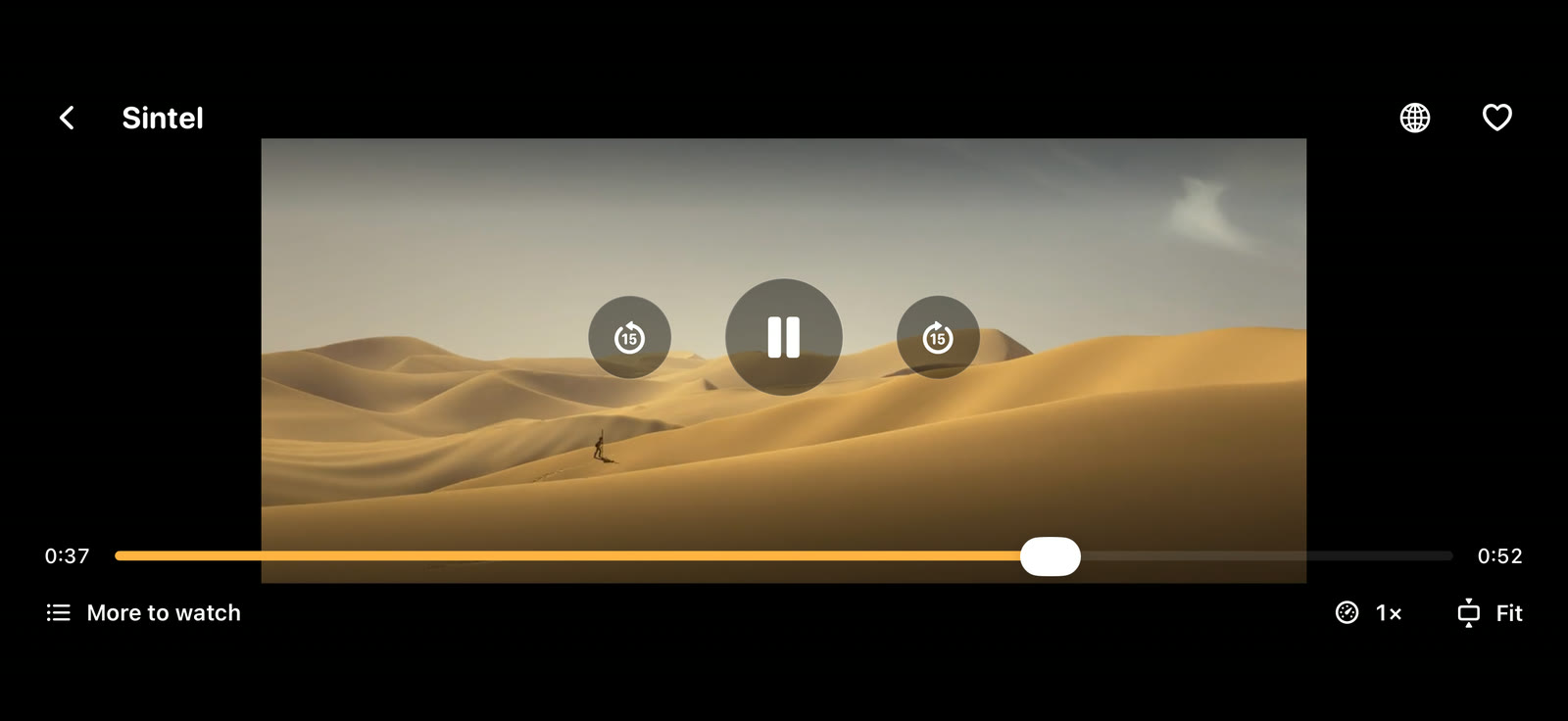
Video on the car’s display is for parked cars and passengers. On the move, your lists stay on the screen and the sound keeps playing through the car.
5. The steering wheel and the iPhone remote
- Steering wheel buttons step to the previous or next channel in the group, the next favourite, or the next episode of a series. A single film skips 15 seconds.
- The iPhone as a remote on iOS 27.2: move a pointer over the car’s screen, scroll pages and type into websites from the phone.
- On the iPhone: audio language and subtitles, playback speed, a sleep timer and a controls lock for little hands.
Watching YouTube in the car? Read how to watch YouTube on CarPlay.
6. Back home: your TV
The same film or channel goes to the TV with the cast button: a Chromecast or Google TV, an Apple TV or AirPlay TV, or a Samsung, LG, Sony or Philips smart TV. The iPhone stays the remote, from the lock screen too.
7. What plays where
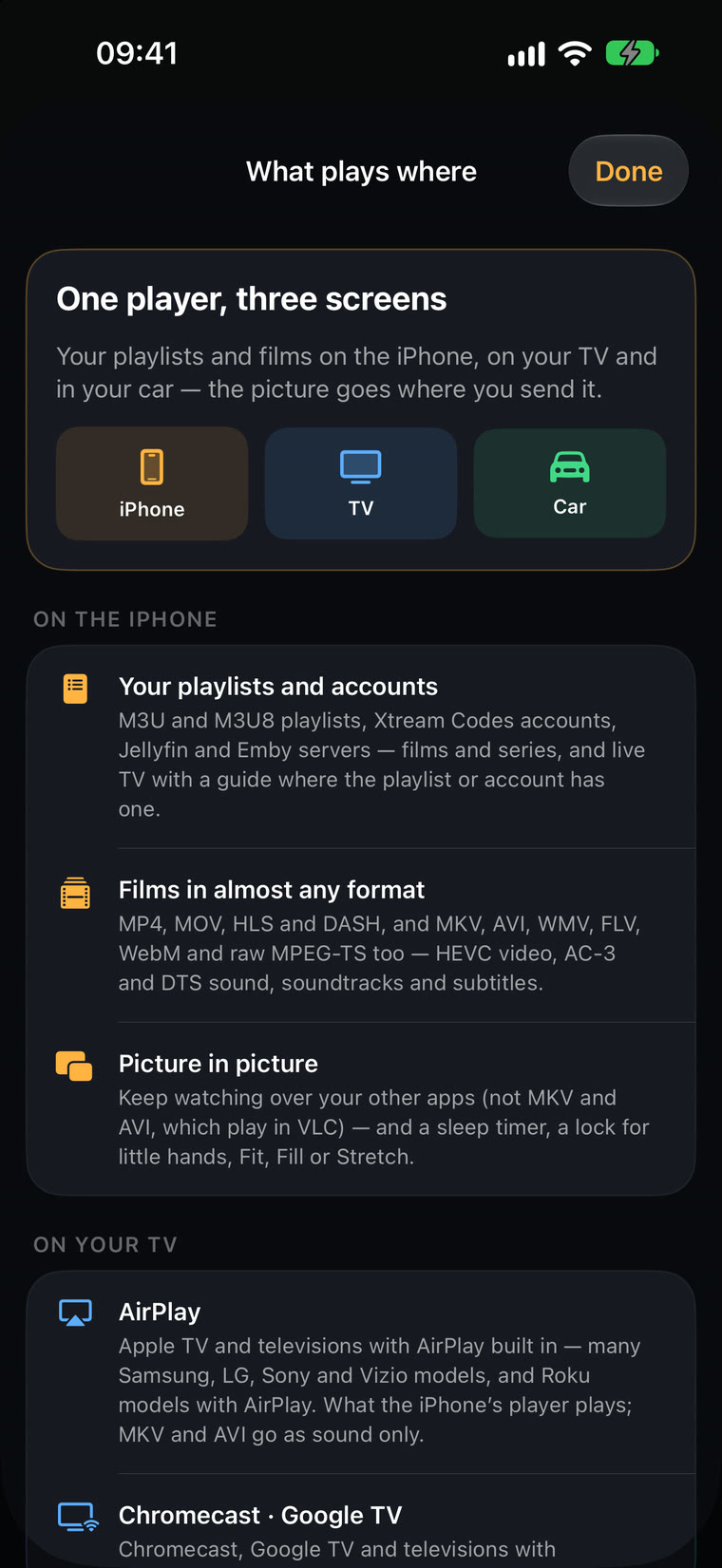
Settings → What plays where lists what plays on the iPhone, on your TV and in your connected car — formats included. HLS, MP4 and MOV play everywhere; MKV, AVI and other files play on the iPhone and on a Chromecast.
For cars and iOS versions, see the compatibility page.
Questions
Does Car Cinema work on iOS 27.2?
Yes. On iOS 27.2 Car Cinema plays films, live TV and YouTube on the car’s display while parked, in every car with CarPlay.
Can I change channels with the steering wheel?
Yes. The steering wheel’s previous and next buttons step through the channels of the group, your favourites or a series’ episodes.
Why don’t I see the picture on the car’s screen?
Tap “I am parked” on the car’s screen first. On iOS 18 to 26.3 the car shows your lists and plays the sound, and the picture plays on the iPhone.
Does Car Cinema come with channels?
No. It’s a player for your own sources: IPTV playlists, Jellyfin and Emby, files, links and YouTube.